A few years ago, removing a photobomber or rescuing a blurry shot meant paying for pro software and watching tutorials. Now you can tap a stranger out of your beach photo while you’re still standing on the beach.
The tricky part is figuring out which tools are truly free. Many “free” editors hide the good stuff behind credits, watermarks or a trial that quietly turns into a subscription. Others are genuinely generous because they’re built into something you already own.
We looked at the current crop of tools to find the best free AI photo editor for different jobs: everyday fixes, object removal, prompt-based edits and backgrounds. Here’s what each one does well and where the free version stops.
Best all-rounder on a phone: Google Photos (free Magic Eraser, Unblur and Portrait light; Magic Editor has limits).
Best no-strings manual editor: Snapseed.
Best for “describe the edit” changes: Gemini or ChatGPT (free with daily limits).
Best on a Windows PC: the built-in Photos app.
Start with what’s already on your device before signing up for anything.
What “free” really means for AI photo editors
AI editing costs companies real computing power every time you press a button. That’s why free plans usually come with one of these catches.
- Usage caps: a set number of AI edits, saves or “credits” per day or month.
- Watermarks: a logo stamped on exports until you pay.
- Lower resolution: fine for Instagram, not for printing.
- Feature gating: basic tools free, the impressive ones in a paid tier.
- Device requirements: free, but only on newer phones or computers.
None of these are deal-breakers. You just want to know which catch you’re signing up for before you spend twenty minutes perfecting an edit you can’t export.
The best free AI photo editors right now
Free plans change often, so treat the limits below as a snapshot and double-check inside the app before you rely on them.
1. Google Photos (Android, iPhone)
If you only install one thing, make it this. Google moved several of its AI editing tools, including Magic Eraser, Photo Unblur and Portrait light, to all Google Photos users with no subscription required, according to Google’s own announcement.
Magic Editor, the more powerful generative tool that can move a subject or rework a sky, came with a monthly cap on saves for people without a Pixel phone or a higher Google One plan. Google has since added conversational editing, where you type or say what you want, rolling out by region and device.
Best for: quick fixes on photos already in your camera roll. Catch: the fanciest edits are limited, and features vary by phone.
2. Snapseed (Android, iPhone)
Snapseed is Google’s long-running free editor, and it recently got a major redesign, first on iPhone and then on Android. It has no subscription and no ads, which is rare in this category.
It’s less “type a wish, get a picture” and more smart manual editing: a healing brush that fills in small blemishes, selective adjustments, portrait and face tools, and film-style looks. If you like control, it’s a joy.
Best for: people who want to learn editing without paying. Catch: no big generative tricks like replacing backgrounds.
3. Apple Photos Clean Up (iPhone, iPad, Mac)
On Apple devices that support Apple Intelligence, the built-in Photos app includes Clean Up. You circle or tap a distracting object and it fills in the gap. It’s free and fast, and your photo never has to leave the app.
Best for: iPhone owners with a recent model. Catch: older devices don’t get it.
4. Windows Photos (Windows PC)
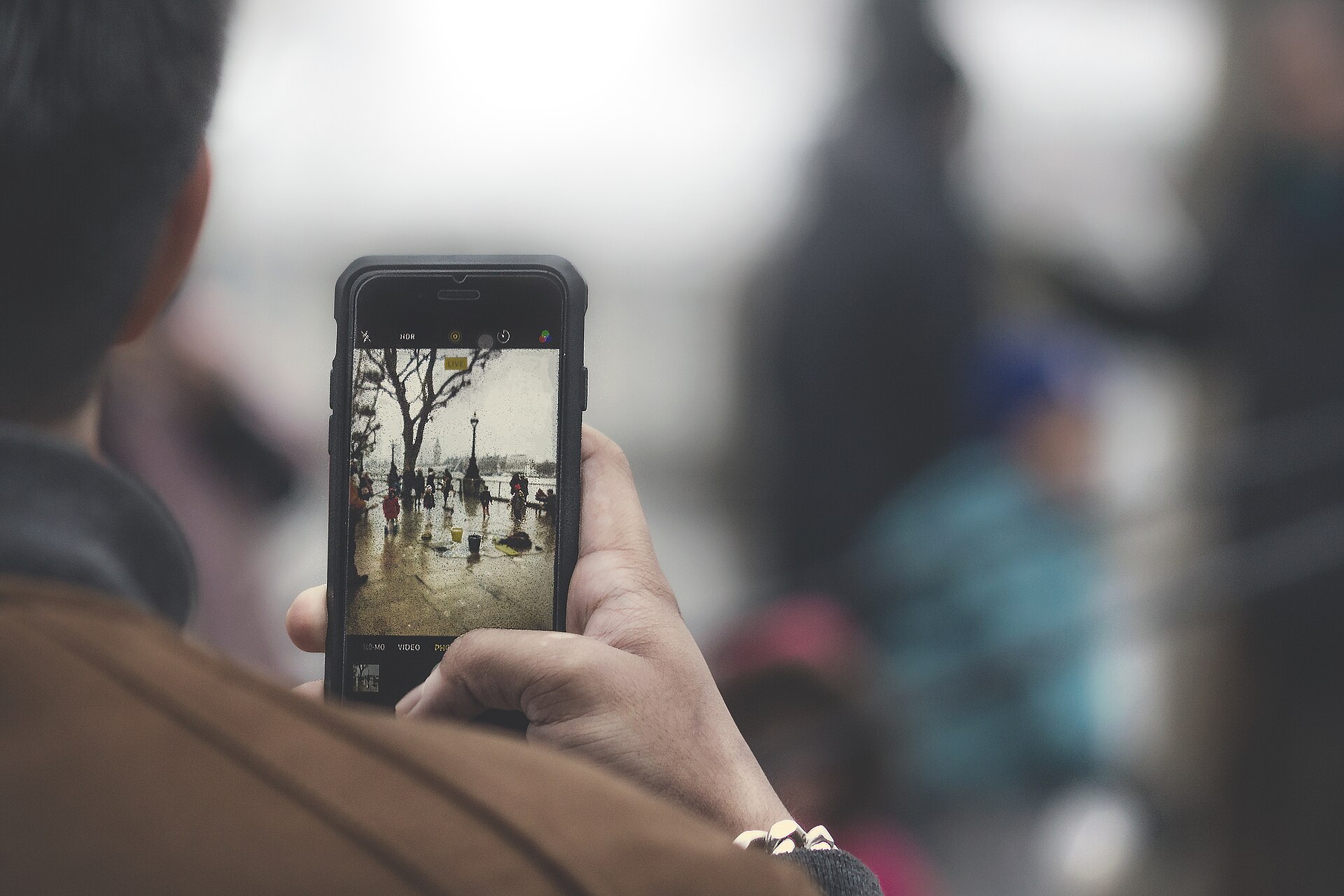
Microsoft’s free Photos app has quietly become useful. Generative erase removes unwanted objects, and background tools can blur, remove or replace what’s behind your subject. If you’re editing on a laptop, check here before downloading anything.
Best for: desktop users who want simple fixes. Catch: some newer AI features require recent hardware or updates.
5. Gemini (web, Android, iPhone)
Google’s AI assistant can edit photos from a plain-language prompt: “make it golden hour,” “remove the cars,” “put me in a rain jacket.” It’s surprisingly good at keeping faces and fine details consistent between edits, and it can combine elements from more than one image.
Best for: creative changes that would take ages by hand. Catch: free use has limits, and AI-made images are marked as such (Google embeds an invisible SynthID watermark).
6. ChatGPT (web, Android, iPhone)
ChatGPT can both generate images and edit ones you upload, and it handles detailed instructions well. Ask for a cartoon version of your dog, a cleaner product shot, or a new background for your headshot.
Best for: step-by-step refining through conversation. Catch: the free version has usage limits, and heavy edits can drift away from the original face.
7. Adobe Express (web, mobile)
Adobe’s free design app includes a set of free daily AI generations powered by its Firefly models, including inserting and removing objects. It’s great when your photo is headed for a flyer, a story or a thumbnail.
Best for: photos that become graphics. Catch: some editing tools and monthly credits are reserved for Premium.
8. Canva (web, mobile)
Canva’s free plan is excellent for layouts and includes limited access to some AI features. Many of its headline photo tools, like the one-click background remover, sit in the paid Pro plan.
Best for: social posts and invitations. Catch: the photo-specific AI is mostly paid.
9. Photoroom (web, mobile)
Photoroom is built around cutting out a subject and dropping it onto a clean background, which makes it popular with people selling items online. The cutouts are quick and tidy.
Best for: product photos and marketplace listings. Catch: check the free export for branding or resolution limits before you rely on it.
10. Fotor (web)
Fotor is a browser-based editor with one-click enhancement, retouching and creative effects. It’s handy on a borrowed computer where you can’t install anything.
Best for: quick edits in a browser. Catch: AI use is restricted on the free plan, and you’ll see upgrade prompts.
Side-by-side comparison
| Tool | Where | Standout free AI feature | Main catch |
|---|---|---|---|
| Google Photos | Android, iPhone | Magic Eraser, Unblur | Magic Editor limits |
| Snapseed | Android, iPhone | Healing, face tools | No generative edits |
| Apple Photos | Apple devices | Clean Up | Newer devices only |
| Windows Photos | Windows PC | Generative erase, backgrounds | Some features need new hardware |
| Gemini | Web, mobile | Prompt-based edits | Daily limits |
| ChatGPT | Web, mobile | Conversational edits | Usage limits |
| Adobe Express | Web, mobile | Insert and remove objects | Some tools Premium-only |
| Canva | Web, mobile | Design layouts, some AI | Photo AI mostly Pro |
| Photoroom | Web, mobile | Background cutouts | Export limits |
| Fotor | Web | One-click enhance | Restricted AI, upsells |
Which free editor should you use for what?
Rather than picking one “winner,” match the tool to the job. Here are a few common situations.
- “There’s a stranger in my vacation photo.” Google Photos Magic Eraser, Apple Clean Up or Windows generative erase. Start with whatever is built in.
- “My photo is a little blurry.” Google Photos Unblur works well on mild softness. Nothing fixes a badly out-of-focus shot.
- “I want my selfie in a moody film look.” Snapseed’s looks and curves give you control without making your face look fake.
- “Make it look like we were in Paris.” Gemini or ChatGPT. Expect a few tries, and be honest if you share it.
- “I’m selling a lamp on Marketplace.” Photoroom or Adobe Express for a clean white background.
- “Grandma’s photo is faded and torn.” See our step-by-step guide on restoring old photos with AI.

Tips for better AI edits
- Start with the best original you have. AI can fix a lot, but a sharp, well-lit photo always edits better. Our guide on how to take a great selfie covers the basics.
- Erase in small bites. Removing one object at a time gives cleaner fills than circling half the scene.
- Be specific in prompts. “Replace the gray sky with a soft sunset, keep the people unchanged” beats “make it prettier.”
- Zoom in before you export. Check hands, hair edges, text and patterns, where AI mistakes hide.
- Keep the original. Save edits as copies so you can always go back.
Privacy: read before you upload
Built-in tools like Apple Photos and Windows Photos keep things closer to home. Web and cloud tools process your image on company servers, and some use uploads to improve their models unless you opt out.
That matters most for faces, kids and documents. Before you upload a family photo, skim the privacy settings, or use our checklist on whether it’s safe to upload your face to AI apps.
FAQ
What is the best free AI photo editor overall?
For most people on a phone, Google Photos is the best free AI photo editor because its core tools cost nothing and work on both Android and iPhone. If you want creative, prompt-based changes, add Gemini or ChatGPT.
Are there free AI photo editors without watermarks?
Yes. Built-in editors like Google Photos, Apple Photos, Windows Photos and Snapseed don’t add a visible logo. Some generative tools do embed invisible markers or metadata showing an image was AI-edited.
Can free AI editors make me look younger or older?
Prompt-based tools can, with mixed results. Dedicated face filters use specialized models for that job. Our explainer on how AI face filters work breaks down what’s happening.
Is it okay to post heavily AI-edited photos?
For fun posts, sure. Just don’t present an edited image as a real event when it matters, like news, a dating profile or a product listing. If you’re curious how others can tell, read how to spot an AI-generated photo.
The best free AI photo editor is usually the one already on your device. Start there, reach for a prompt-based tool when you want something creative, and keep your originals safe. Your camera roll is about to get a lot less cluttered with photobombers.